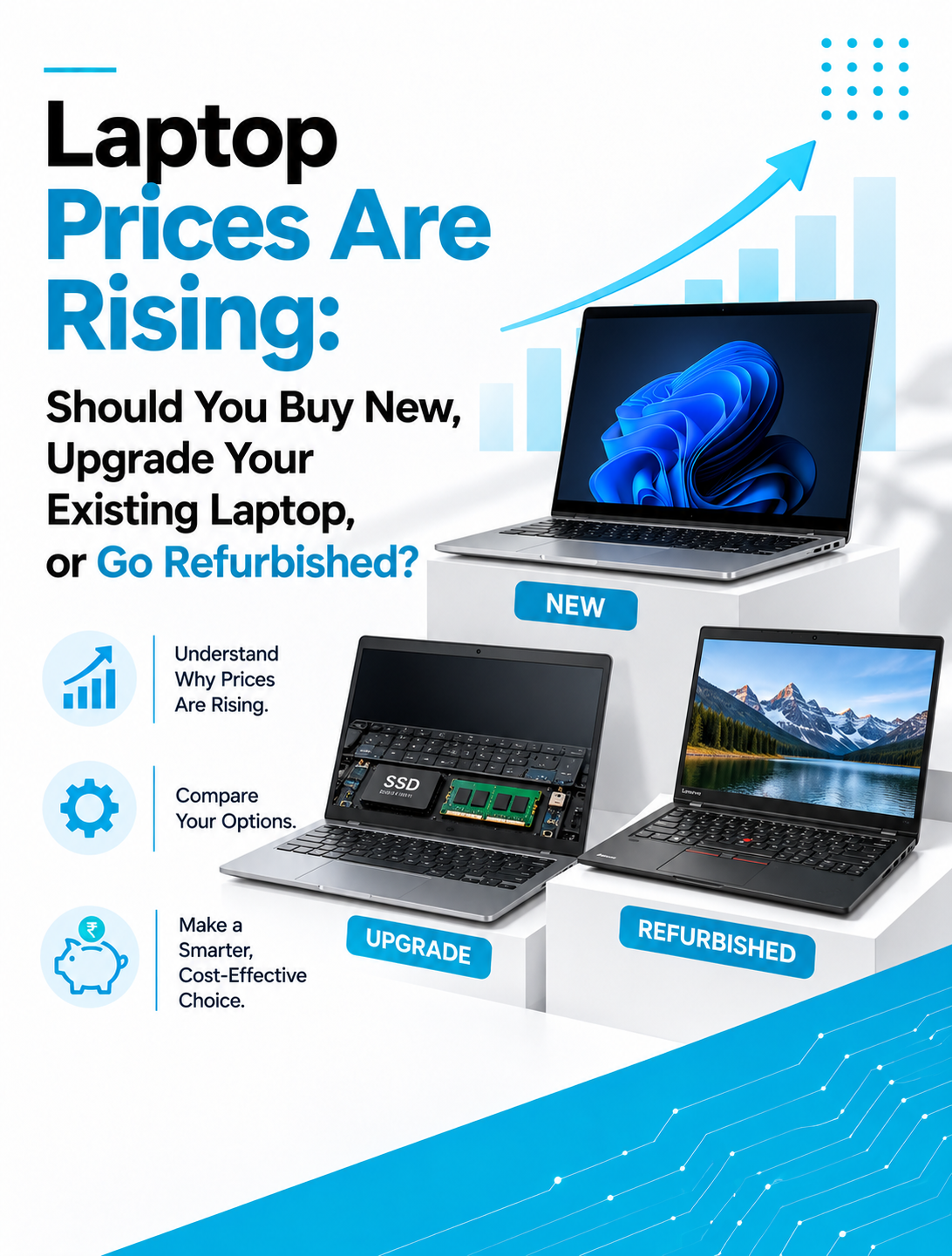
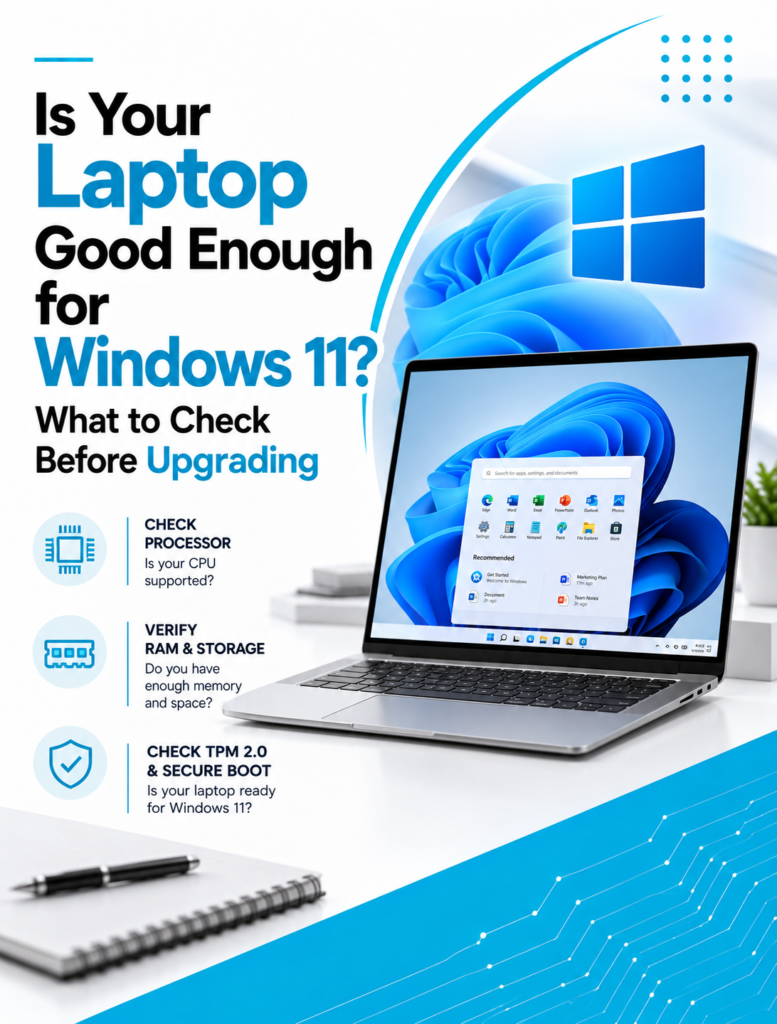
If you are still using an older laptop, you may be wondering whether it can run Windows 11 or whether it is time to purchase a new device.
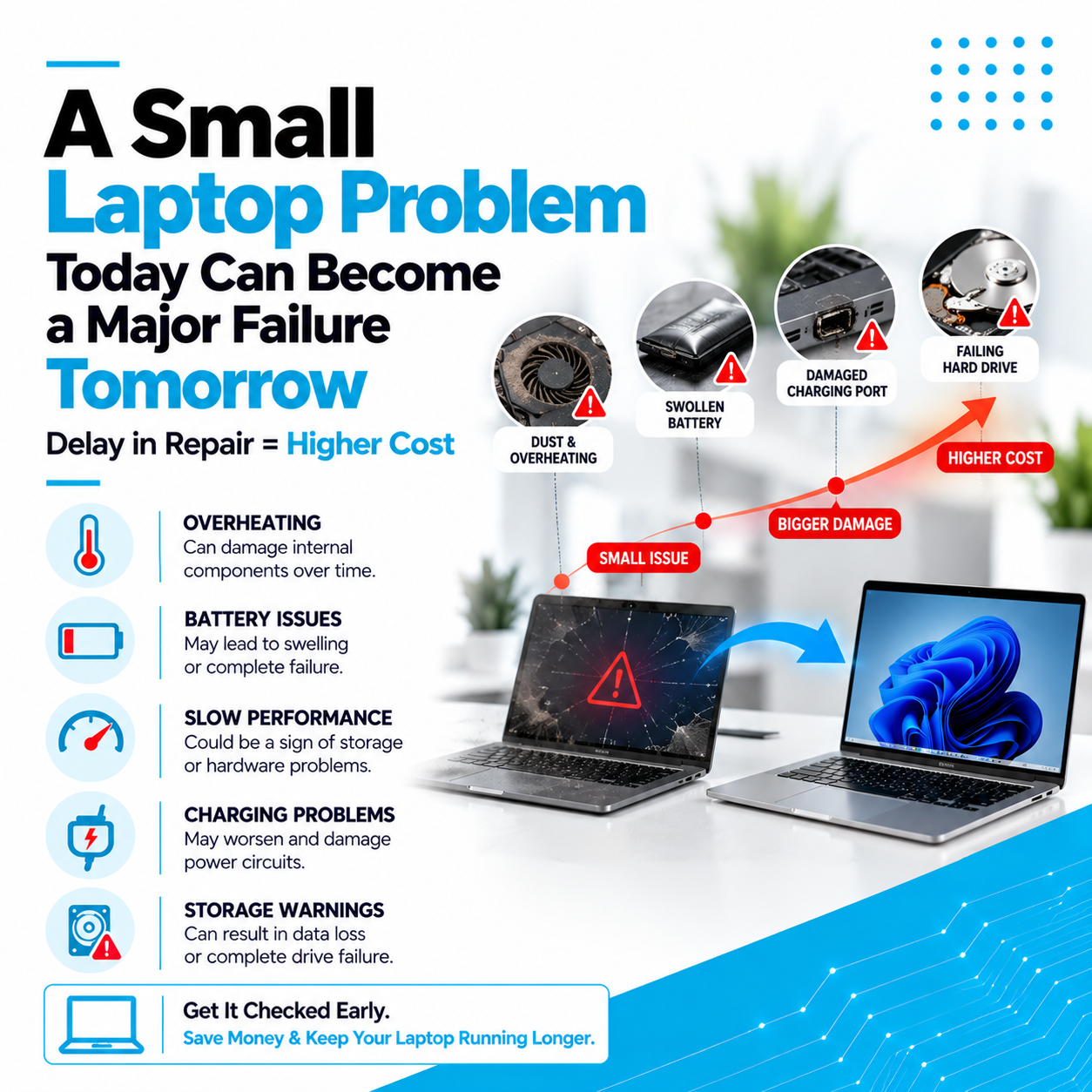
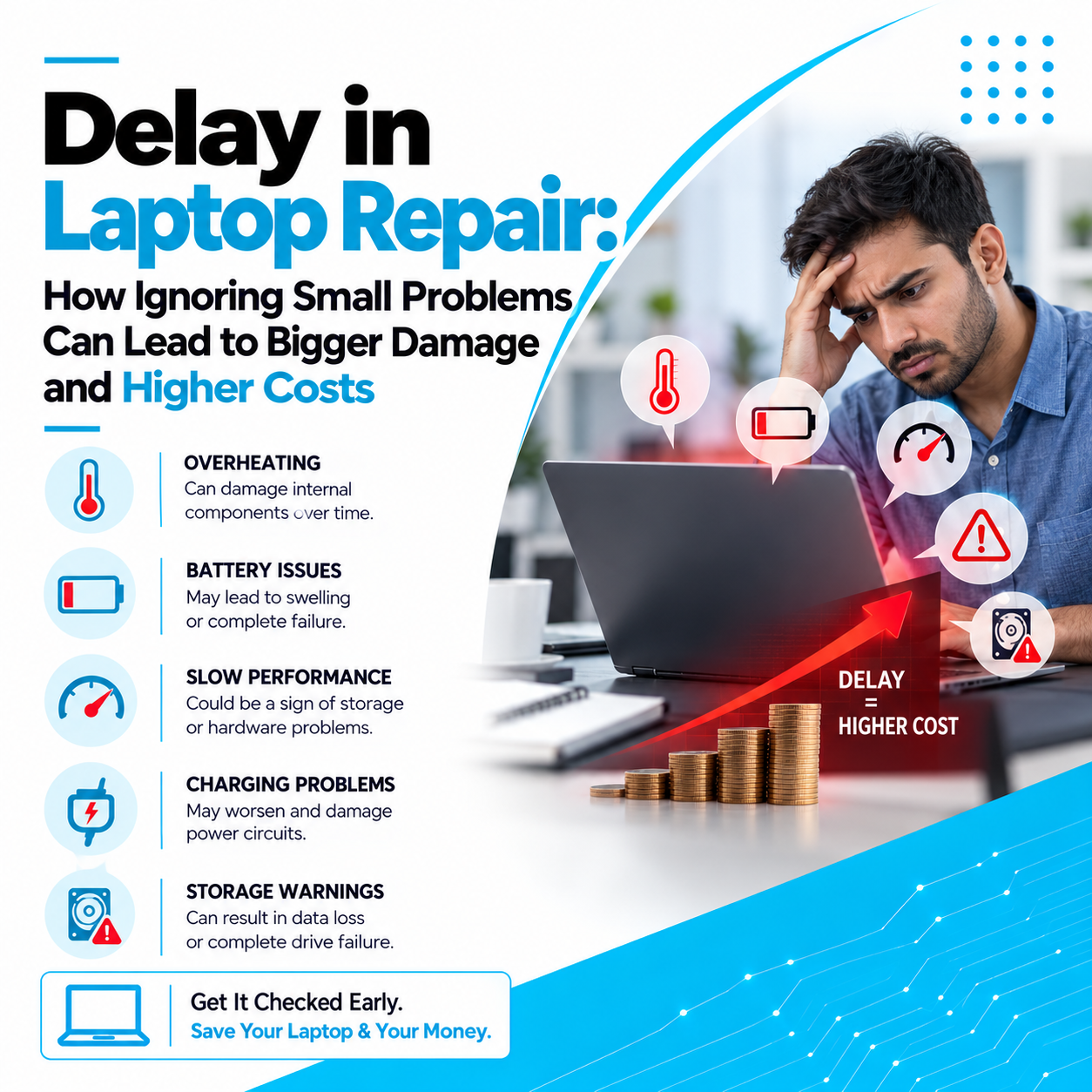
Windows 11 offers a modern interface, productivity features, and ongoing security updates for supported systems. However, not every older laptop meets its hardware requirements. Installing a new operating system also does not automatically solve problems such as slow performance, overheating, or failing hardware.
There is another important reason to check your laptop now: Microsoft ended standard support for Windows 10 on October 14, 2025. Windows 10 computers continue to work, but ordinary editions no longer receive regular security updates through standard support. Eligible users may have Extended Security Updates options available. <a href=”https://support.microsoft.com/en-us/windows/deployment/updates-lifecycle/windows-10-support-has-ended-on-october-14-2025″ target=”_blank”>Microsoft’s Windows 10 support guidance</a> explains the available options.
In this guide, we explain how to check Windows 11 compatibility, which components matter, what you can upgrade, and when repairing or replacing your laptop makes more sense.
1. What Are the Minimum System Requirements for Windows 11?
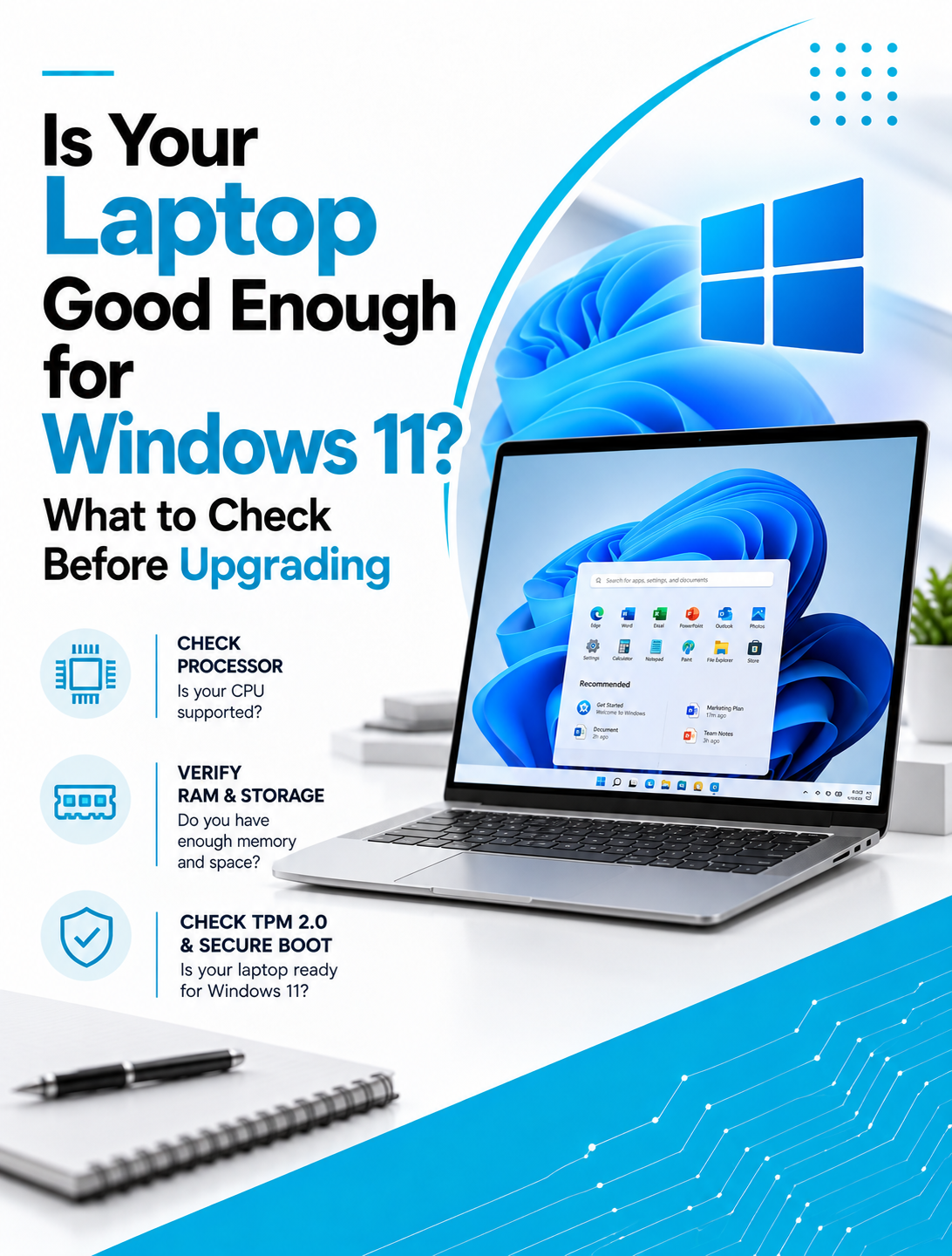
Before upgrading, check whether your laptop meets Microsoft’s minimum hardware requirements.
The main requirements include:
Component | Windows 11 minimum requirement |
Processor | 1 GHz or faster, with at least 2 cores, on Microsoft’s supported processor list |
RAM | 4 GB |
Storage | 64 GB or larger |
System firmware | UEFI with Secure Boot capability |
TPM | Trusted Platform Module (TPM) version 2.0 |
Graphics | DirectX 12-compatible graphics with a WDDM 2.0 driver |
Display | More than 9 inches diagonally, with HD resolution of 720p or higher |
Meeting these minimum requirements does not guarantee that every application will run smoothly. Some software and Windows features require better specifications.
You can review the complete requirements on the official <a href=”https://www.microsoft.com/en-in/windows/windows-11-specifications” target=”_blank”>Windows 11 specifications page</a>.
2. How to Check Whether Your Laptop Supports Windows 11
You do not need to purchase a new laptop just to check compatibility. Start with these steps.
Method 1: Use Microsoft’s PC Health Check App
The PC Health Check app is one of the simplest ways to check whether your computer meets Windows 11 requirements.
- Visit Microsoft’s official Windows 11 website.
- Download and install the PC Health Check app.
- Open the application.
- Select the Windows 11 compatibility check.
- Review the result and any hardware requirements your device does not meet.
You can find the official information through Microsoft’s <a href=”https://www.microsoft.com/en-in/windows/windows-11-specifications” target=”_blank”>Windows 11 specifications and compatibility page</a>.
If the app reports that your device is compatible, check Windows Update for the available upgrade.
Method 2: Check Your Processor and RAM
To view your laptop’s basic specifications:
- Open Settings.
- Select System.
- Choose About.
- Review your processor, installed RAM, and Windows specifications.
Remember that a processor’s speed alone is not enough. Windows 11 requires a compatible processor model, so even a processor that appears powerful may not qualify.
Method 3: Check TPM 2.0
TPM is a security component used by Windows for features such as device security and protection of certain credentials.
To check TPM:
- Press Windows + R.
- Type tpm.msc.
- Press Enter.
- Check the TPM status and specification version.
If TPM is not detected, it does not always mean the laptop lacks the required capability. On some devices, the feature may be disabled in the firmware settings. Check your manufacturer’s documentation before changing BIOS or UEFI settings.
3. Why Is Your Laptop Not Compatible With Windows 11?
If your laptop fails the compatibility check, the reason matters. Some issues may be resolved through configuration changes or upgrades, while others require a different device.
Unsupported Processor
Windows 11 requires a supported processor. A CPU generally cannot be upgraded independently in most modern laptops, so an unsupported processor may prevent an officially supported installation.
Adding RAM or replacing an HDD with an SSD will not change the processor’s compatibility.
Missing or Disabled TPM 2.0
Some laptops have firmware-based TPM functionality that may be disabled. Depending on the manufacturer, it may be listed as Intel PTT, AMD fTPM, or a TPM-related security setting.
Before concluding that your laptop is incompatible, check the model’s documentation or consult a technician.
Insufficient RAM
Windows 11 has a minimum RAM requirement of 4 GB, but that is not necessarily enough for comfortable everyday multitasking.
For typical office work, 8 GB may be a practical starting point, while 16 GB can provide more headroom for multitasking. The right amount depends on your applications and whether the laptop supports a memory upgrade.
Insufficient Storage
Windows 11 requires at least 64 GB of storage, but available space is also important for installation and updates.
If your laptop has a small drive or an older HDD, a compatible SSD with sufficient capacity may improve responsiveness and provide more usable space. However, storage upgrades do not solve every compatibility issue.
4. Can You Upgrade Your Existing Laptop for Windows 11?
Yes, some laptops can be improved to meet particular requirements, but not every requirement is upgradeable.
RAM Upgrade
If your laptop has insufficient memory, adding compatible RAM may help it meet the minimum requirement and improve multitasking.
Before purchasing RAM, check the supported capacity, memory type, available slots, and whether the memory is soldered to the motherboard.
SSD Upgrade
Replacing an HDD with an SSD can make a compatible laptop feel substantially more responsive.
An SSD can improve boot times, application loading, and everyday file access. It is particularly useful when the laptop is slow because of its storage drive.
However, an SSD upgrade will not make an unsupported processor compatible with Windows 11 or add TPM 2.0 functionality if the system does not support it.
Firmware and Security Settings
Some devices may need Secure Boot or TPM settings enabled in UEFI firmware.
These changes should be made carefully. Incorrect firmware changes can affect booting or device security, so consult the laptop manufacturer or a qualified technician if you are unsure.
The important point: Upgrade only after identifying the exact reason your laptop failed the compatibility check.
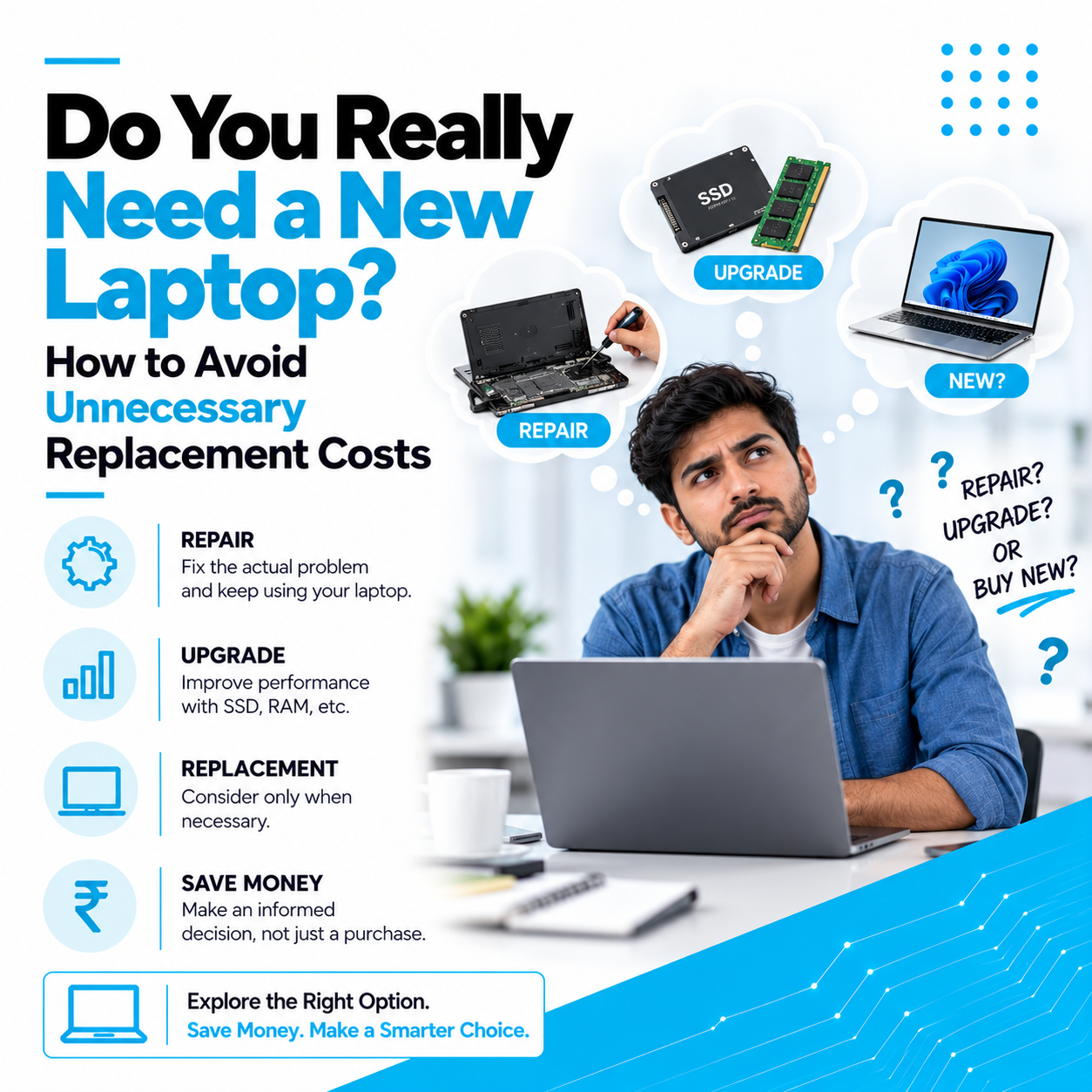
5. Should You Upgrade, Repair, or Replace Your Laptop?
The best decision depends on both compatibility and the laptop’s physical condition.
Your laptop’s situation | Practical next step |
Compatible with Windows 11 and working well | Back up your files and consider upgrading |
Compatible but slow because of an HDD | Assess whether an SSD upgrade would help |
Compatible but short on RAM | Check whether a RAM upgrade is possible |
TPM or Secure Boot appears disabled | Check manufacturer instructions or seek technical assistance |
Processor is unsupported | Consider a supported replacement rather than forcing an installation |
Major motherboard or hardware damage | Compare the repair cost with replacement options |
Suitable hardware but minor performance issues | Consider professional diagnosis and maintenance |
Do not replace a laptop solely because it feels slow. Equally, do not spend heavily upgrading an old device without checking whether it can support your required operating system and applications.
6. Is a Refurbished Laptop a Good Alternative?
If your current laptop does not support Windows 11, a refurbished laptop may offer a more affordable replacement than buying a brand-new model.
Business laptop ranges such as Dell Latitude, HP EliteBook, and Lenovo ThinkPad often appear in refurbished inventories. Depending on the specific model, they can be suitable for office work, online meetings, accounting, browsing, and general productivity.
Before purchasing, check:
- Exact processor model and Windows 11 eligibility.
- RAM and SSD capacity.
- Battery condition and charging performance.
- Screen, keyboard, ports, and connectivity.
- Operating system activation and compatibility.
- Warranty, return policy, and device testing.
Do not assume every refurbished laptop supports Windows 11. Verify the exact model against Microsoft’s supported requirements before buying.
Laptop Hub offers refurbished laptop options as well as repair and upgrade services, helping customers compare whether their existing device can be improved or a replacement is more practical.
7. What If Your Laptop Cannot Run Windows 11?
If your device is incompatible, you still have choices.
Option 1: Check for an official upgrade path. Confirm the exact compatibility issue and whether a supported configuration change can resolve it.
Option 2: Consider Extended Security Updates. Eligible Windows 10 devices may have access to Microsoft’s ESU programme, which provides security updates for a limited period. Check current eligibility, registration requirements, and the applicable end date.
Option 3: Replace the laptop. If you need a supported operating system for work or study, choose a laptop that meets Windows 11 requirements and your application’s recommended specifications.
Option 4: Explore a refurbished business laptop. A tested, compatible refurbished device may provide the required functionality at a lower initial cost than a comparable new model.
Avoid bypassing Windows 11’s hardware requirements on a primary work computer. Unsupported installations may have compatibility issues and are not guaranteed to receive updates or support.
8. Laptop Upgrade and Repair Services in Ahmedabad
If you are unsure whether to upgrade your existing laptop or purchase another device, a professional assessment can help you avoid unnecessary spending.
Laptop Hub in Ahmedabad provides laptop-related services, including:
- Laptop repair and troubleshooting.
- SSD and RAM upgrade services.
- Chip-level laptop repair.
- New and refurbished laptop options.
- Laptop rental solutions for businesses and temporary requirements.
A technician can inspect the device, identify performance problems, and explain whether a hardware upgrade is worthwhile. For operating system compatibility, the processor model and security capabilities should be checked before deciding on a repair or replacement.
Frequently Asked Questions
1. Can every Windows 10 laptop run Windows 11?
No. A laptop must meet Microsoft’s processor, memory, storage, firmware, TPM, graphics, and display requirements.
2. Will adding RAM make my laptop compatible with Windows 11?
Only if insufficient RAM is the issue and the laptop meets the other requirements. RAM upgrades cannot resolve an unsupported processor by themselves.
3. Can an SSD upgrade fix Windows 11 compatibility problems?
An SSD can improve storage performance and help with storage capacity, but it cannot resolve every compatibility issue, such as an unsupported processor or missing TPM capability.
4. Is Windows 10 still safe to use?
Windows 10 continues to function, but standard support ended on October 14, 2025. Without applicable security updates, the device may be more exposed to security risks. Check whether your device qualifies for Extended Security Updates or move to a supported operating system.
5. Should I buy a refurbished laptop that supports Windows 11?
It can be a cost-effective option if the laptop is properly tested, has suitable specifications, and meets the official Windows 11 requirements. Check warranty and battery condition before purchasing.
6. Where can I get laptop upgrades or repairs in Ahmedabad?
Laptop Hub provides laptop repair and hardware upgrade services, including SSD and RAM upgrades. You can also explore refurbished laptop options if replacing your current device makes more sense.
Conclusion: Check Compatibility Before Spending Money
Before upgrading to Windows 11, verify your laptop’s processor, TPM 2.0, Secure Boot capability, RAM, and storage. Some issues can be resolved through settings changes or compatible hardware upgrades, while others require a supported replacement device.
If your laptop is compatible but slow, an SSD upgrade, RAM upgrade, or professional repair may help. If the hardware is no longer suitable, a compatible refurbished laptop can be a practical alternative to buying new.
Need help deciding what to do with your laptop? Explore Laptop Hub’s repair services, hardware upgrades, and refurbished laptop options in Ahmedabad before making your next investment.